Troubleshoot
Generate a diagnostic report
Resolve microphone discovery issues
Resolve a network loop warning on a Pleneo hub
RoomHub won't power on
RoomVision XL camera not discovered
RoomVision camera not discovered
AudioIQ optimisation not running
Pleneo hub does not connect to Pleneo Cloud
Laptop doesn't detect Pleneo hub over USB
No audio from Sonia speakers
No audio from a RoomDesign Ceiling speaker
If a software update is interrupted
AudioIQ optimization failed
Devices not detected
If you forget the password
Troubleshoot
Troubleshoot
Edited
Laptop doesn't detect Pleneo hub over USB
Steps to get Pleneo hub recognised when you connect a laptop for BYOD.
Overview
If your laptop isn't detecting the Pleneo hub over USB, the cause is almost always the cable path, length, hubs, or a loose connection, rather than the Pleneo hub itself. Start by testing a direct connection.

Test a direct connection
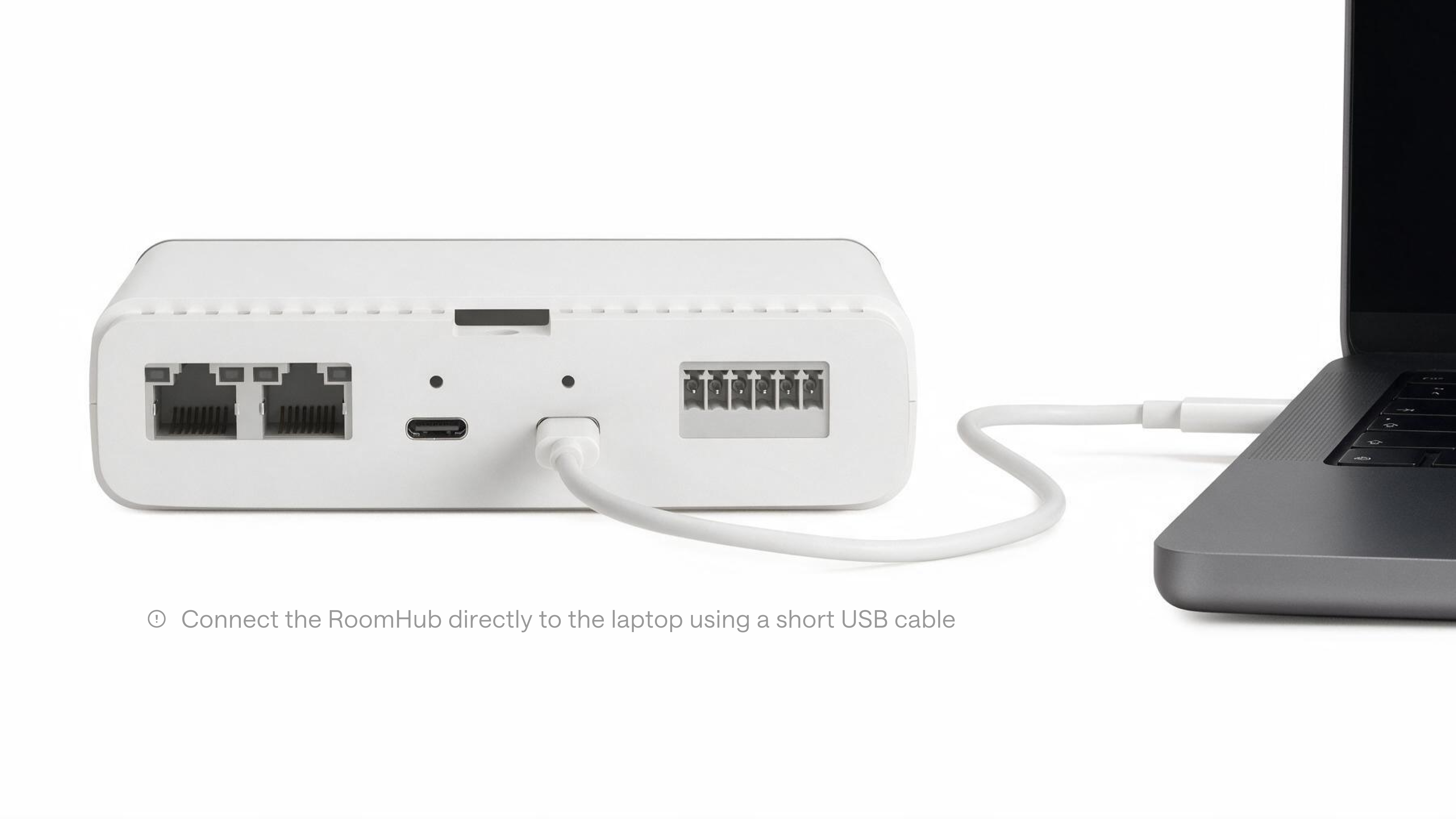
Connect the laptop directly to the Pleneo hub with a short USB cable, avoiding wall plates, extenders, or hubs. This confirms whether the problem is the cable path or the devices themselves.
Check the USB setup
If the direct connection works, the issue is in your USB installation. Check:
Cable length. Cables longer than recommended can cause detection issues; 3 to 5 metres is typically safe, depending on the USB version
USB hubs and long cables. Combining a hub with extended cables often causes detection problems; keep the signal path as simple as possible
Connections. Unplug and reconnect both ends, and try a different USB port on the laptop
Result
With a direct connection, a supported cable length, and no hubs in the signal path, Pleneo hub is recognised automatically. If it's still not detected, generate a diagnostic report and contact Pleneo Support.